Run the whole tournament.
Bracketware is an offline tournament bracket maker for Mac and Windows. This guide takes you from an empty dashboard to a finished event and a safe backup.
From registration to a winner
Try a four-player single-elimination tournament first. You can change the format when you create your next event.
- Add players or keep it simple.Open Players to build a reusable roster with optional region, rating and photo. You can also type entrant names directly in New Tournament or import a CSV.
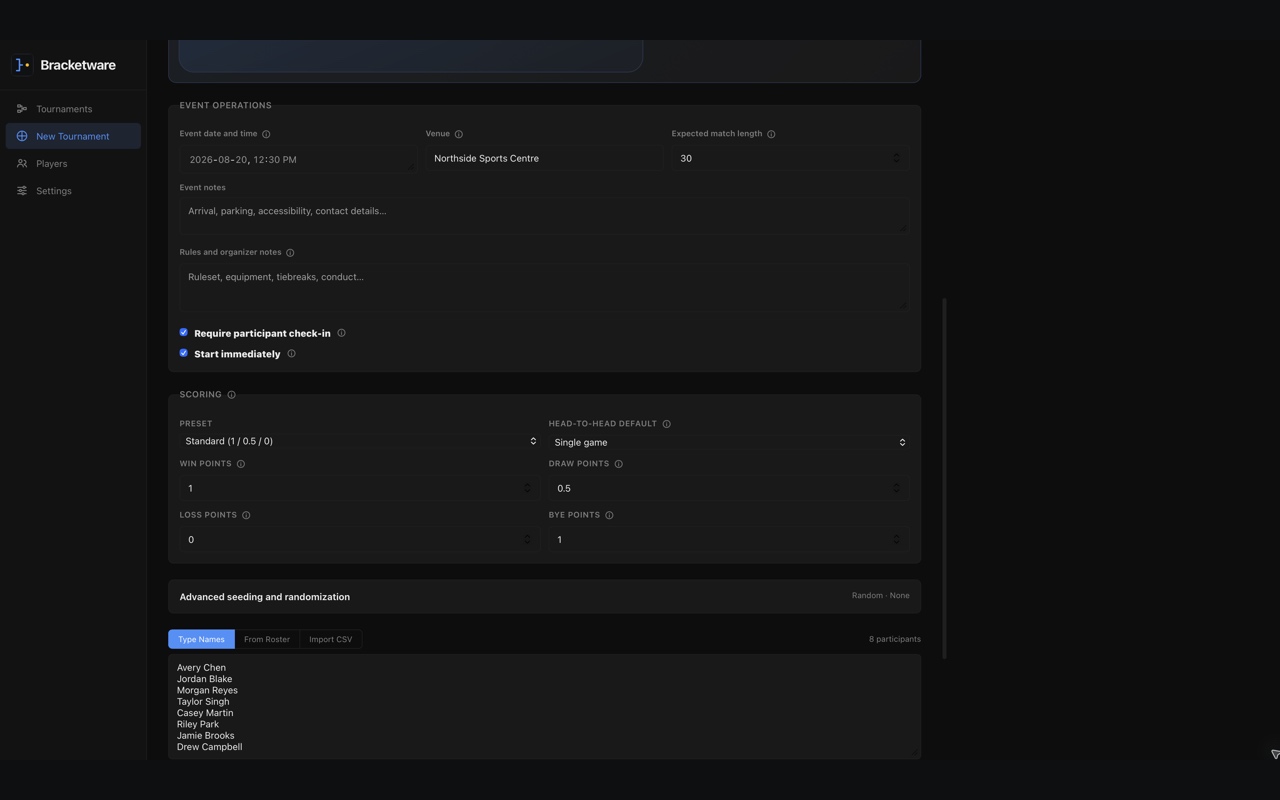
- Create a tournament.Choose New Tournament, name the event, select Single Elimination and add four entrants. Review the rules before you create it; advanced seeding options have help popups.
- Check the draw.Use the draft screen to review the seed order. Manual, random, rating and region-aware options are available when you have the relevant roster data. Start the event when the draw is right.
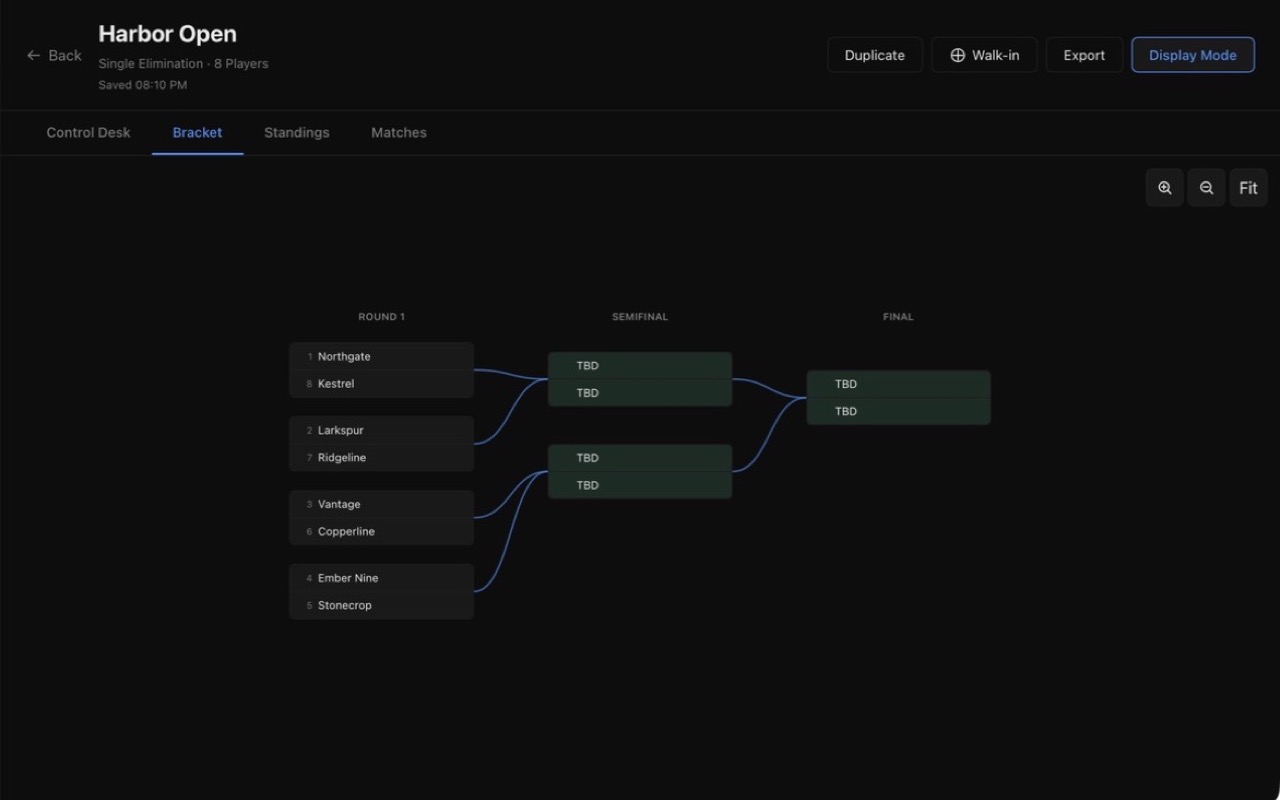
- Run matches.Open an available match, enter the result and confirm it. Bracketware advances the winner. Use correction or undo if you entered the wrong result.
- Show the room.Switch between Bracket, Matches and Standings. Display Mode can rotate those views on a projector. Player photos in the public display are off at the start of each session.
- Finish and back up.When the event ends, review its results, then go to Settings and export a full backup. Save another copy away from the event computer.
Pick the structure that fits the event
Elimination
Single, double and triple elimination, step ladder and compass draw. Use single elimination for a simple knockout bracket.
Everyone plays
Single or double round robin and group pools. Useful when each entrant needs multiple matches. See the round-robin event guide.
Swiss and leagues
Swiss variants, points leagues, Grand Prix and ladders handle events where standings matter as much as a bracket.
Times and stages
Race, time trial, timed rounds and multi-stage events cover formats beyond head-to-head knockouts.
The app includes 20 formats. Some controls depend on the format: for example, elimination brackets do not allow late walk-ins after the draw starts. See support for rules and troubleshooting.
What the app can do
Local event library
Keep multiple tournaments, revisit active events, and archive, duplicate or delete old ones from the dashboard. There is no app-imposed participant or saved-event count limit; your computer's memory and storage set the practical ceiling.
Roster and seeding
Save player details, ratings, regions and optional photos. Import registrations from CSV. Set the draw manually or use a seeding or randomization mode.
Score and present
Run matches, correct results and use a projector-ready display for brackets, matches and standings. Match timers and optional sound help at a live event.
Your own identity
Set a program name, tagline, accent color and logo for the interface, display and supported exports. The signed app name and Dock icon remain Bracketware.
Export the event
Export a bracket image, standings and match CSV files, participant lists, JSON, printable reports and full backups. Ordinary exports and complete backups serve different purposes.
Private by design
Tournament and roster data stay on your device unless you choose to export or share them. There is no Bracketware account or live cloud sync.
Save work you cannot replay
Bracketware saves tournament changes locally and keeps recovery snapshots. Before a live event, export a full backup from Settings and keep a copy on another drive. A backup contains your event history and optional player photos; treat it as a private file.
Moving computers? Install Bracketware on the new machine, then import the full backup from Settings. Keep the original backup until you have checked the imported tournaments. Older Bracketware and IronBracket backups can be imported by the forthcoming 1.1.0 app; a new version-4 backup cannot be imported by older releases.
For installation, local data locations and recovery steps, use the support guide.
What changes in 1.1.0?
The latest Mac App Store build was submitted for Apple review on September 27, 2026. Once available, it adds tournament-level best-of-1/3/5/7 match settings, game-by-game scoring, final placements and native Save As dialogs for desktop exports. Its backups also include custom branding and preferences. The direct Mac download and other storefronts may be on different versions; check the version shown in your app before following those newer steps.